01 / WITHIN REACH
Your content stays first.
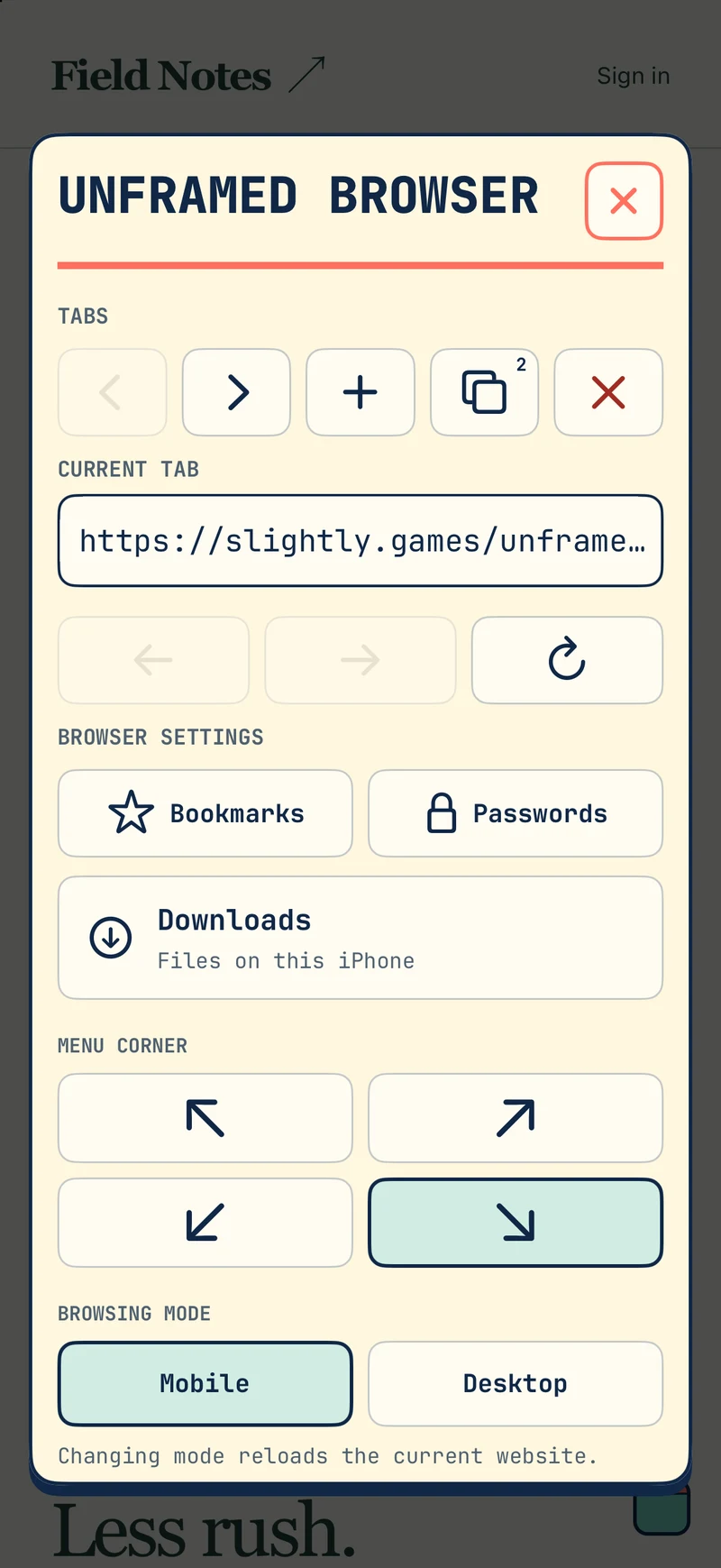
Open the menu for the address, navigation, and tab controls. Close it to give the screen back to the website. Swipe the corner button to move it.

UNFRAMED BROWSER
For iPhone · On the App Store
Your content comes first. A minimal interface keeps browser controls tucked into a small corner menu, out of the way until you need them.
Available for iPhone with iOS 16 or later. Price and availability vary by region.
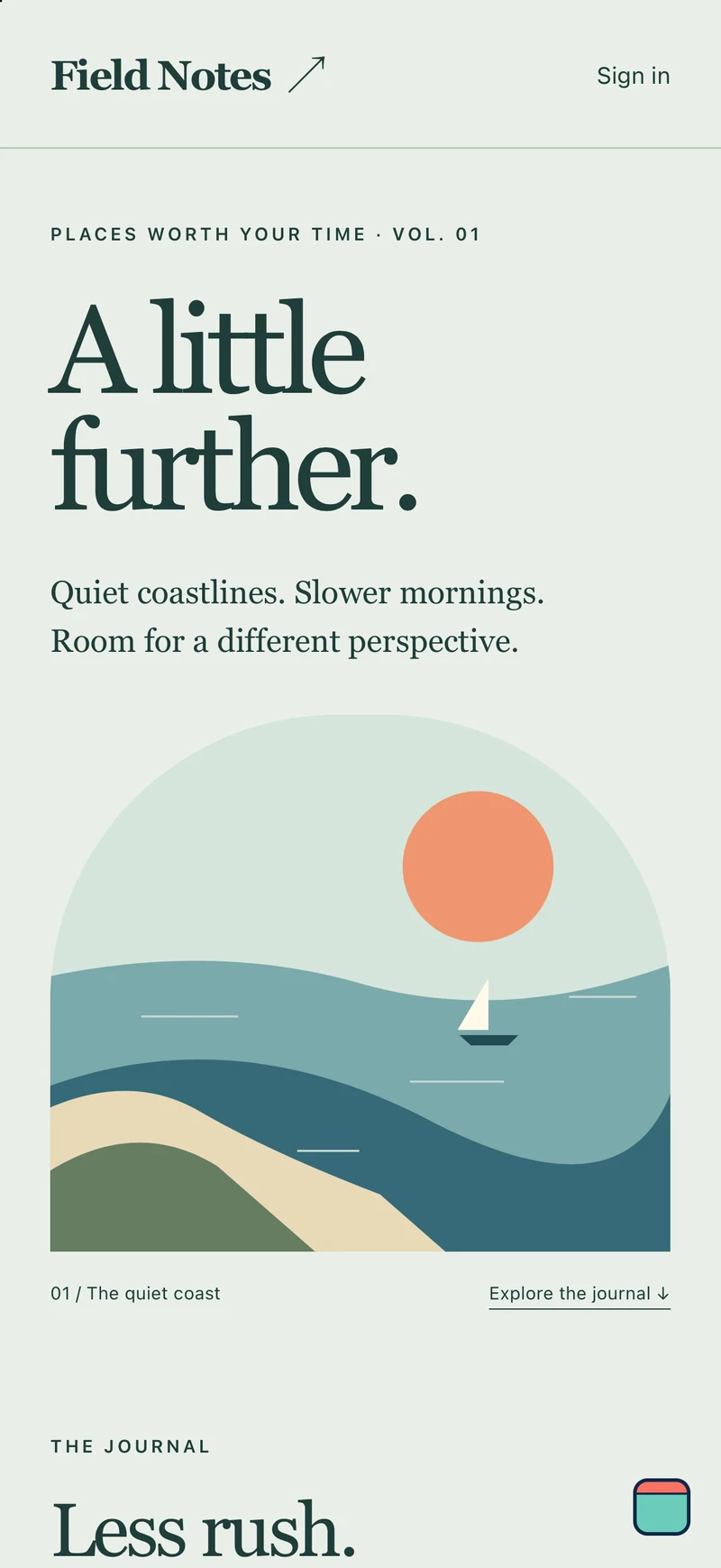
 button.
Full screen, by choice.Use the status-bar area or leave it visible.
Within reach.Swipe the menu button toward your preferred corner.
Your familiar websites.Choose mobile or desktop browsing mode.
Everything close at hand
Concentrate on the page, not the browser. Tabs, bookmarks, saved logins, and downloads live behind one small button. Open the controls when you need them, then return to your content.
Open the menu for the address, navigation, and tab controls. Close it to give the screen back to the website. Swipe the corner button to move it.
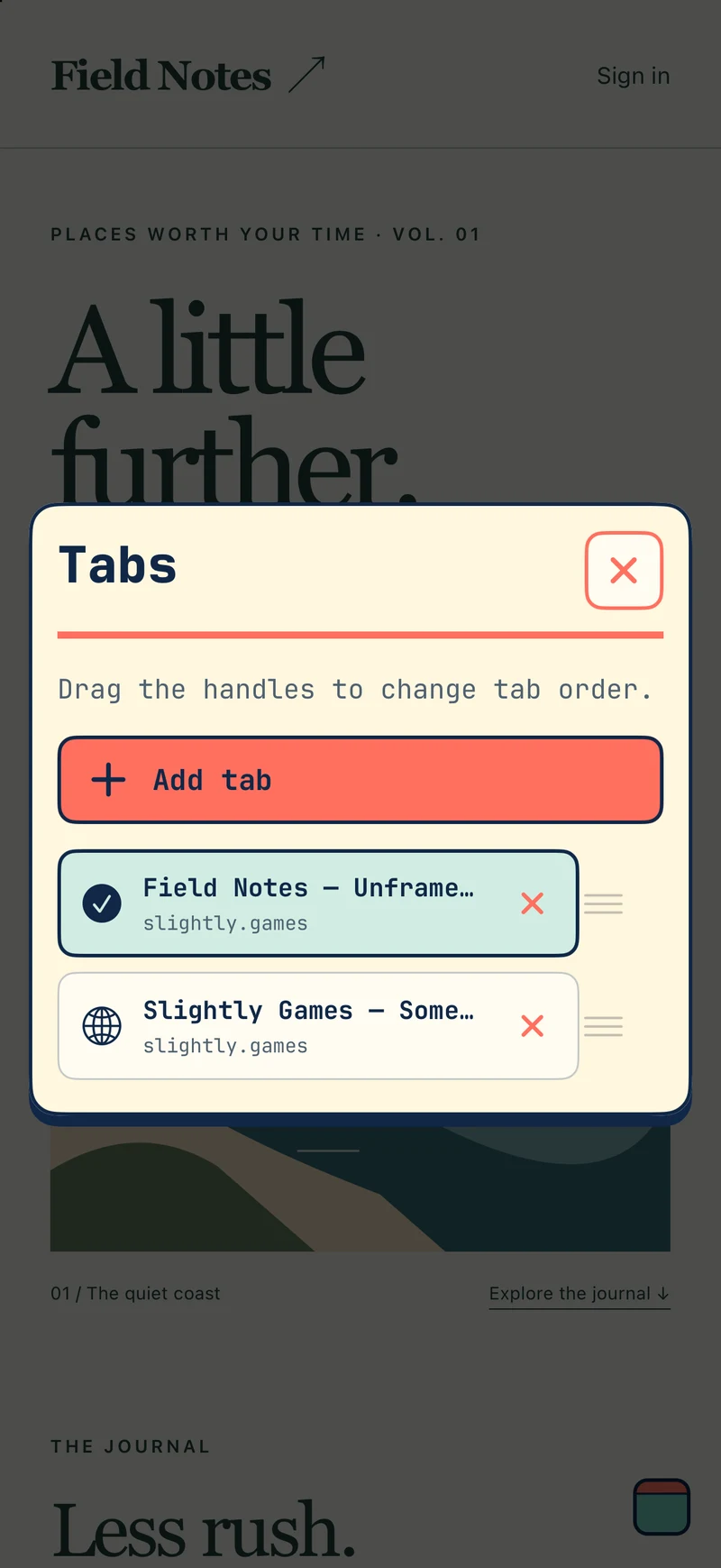
Create tabs from an address or bookmark. Switch, drag to reorder, and close with confirmation. Tabs share website sign-in sessions and keep their own navigation while open.
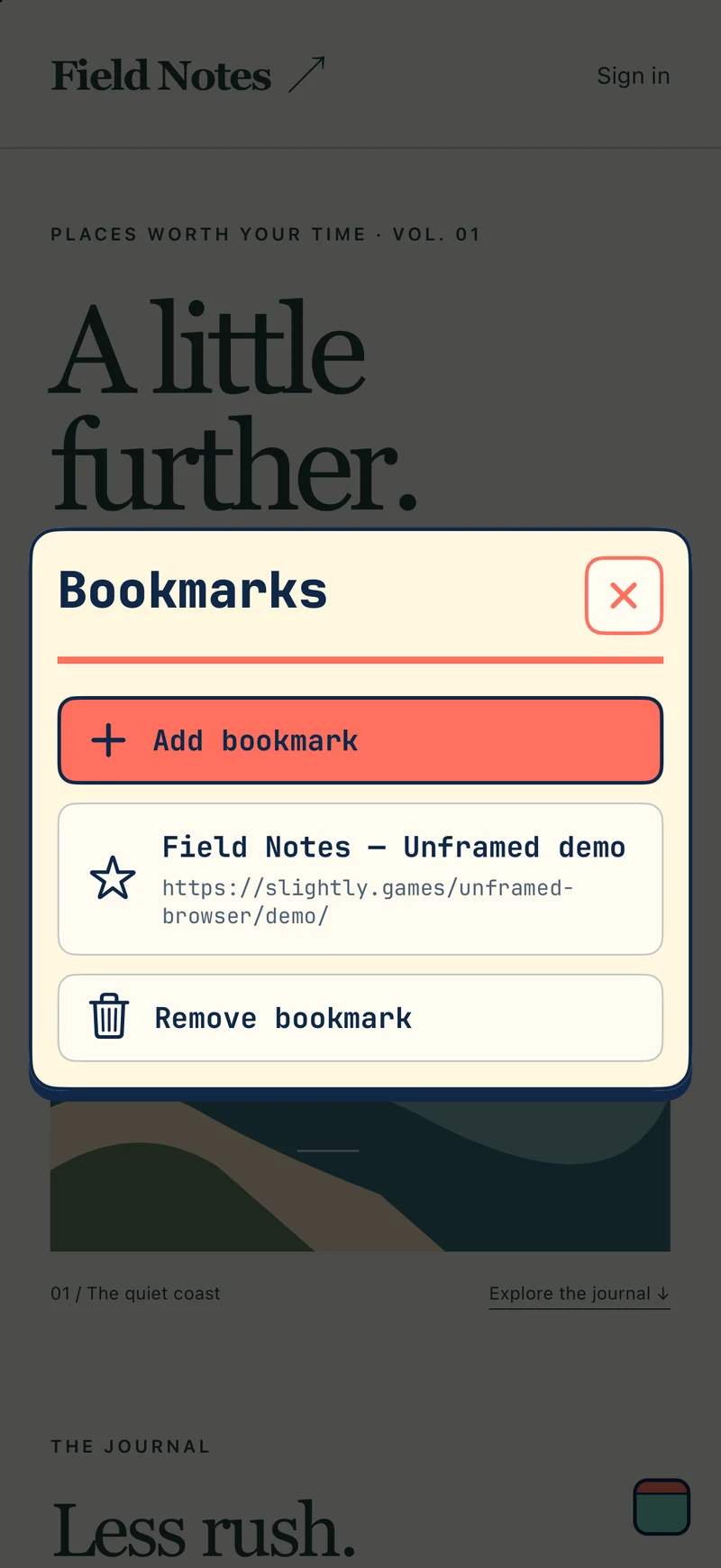
Name and save useful websites. Open a bookmark in your current tab or choose one when creating a new tab. Bookmarks sync through iCloud when available.
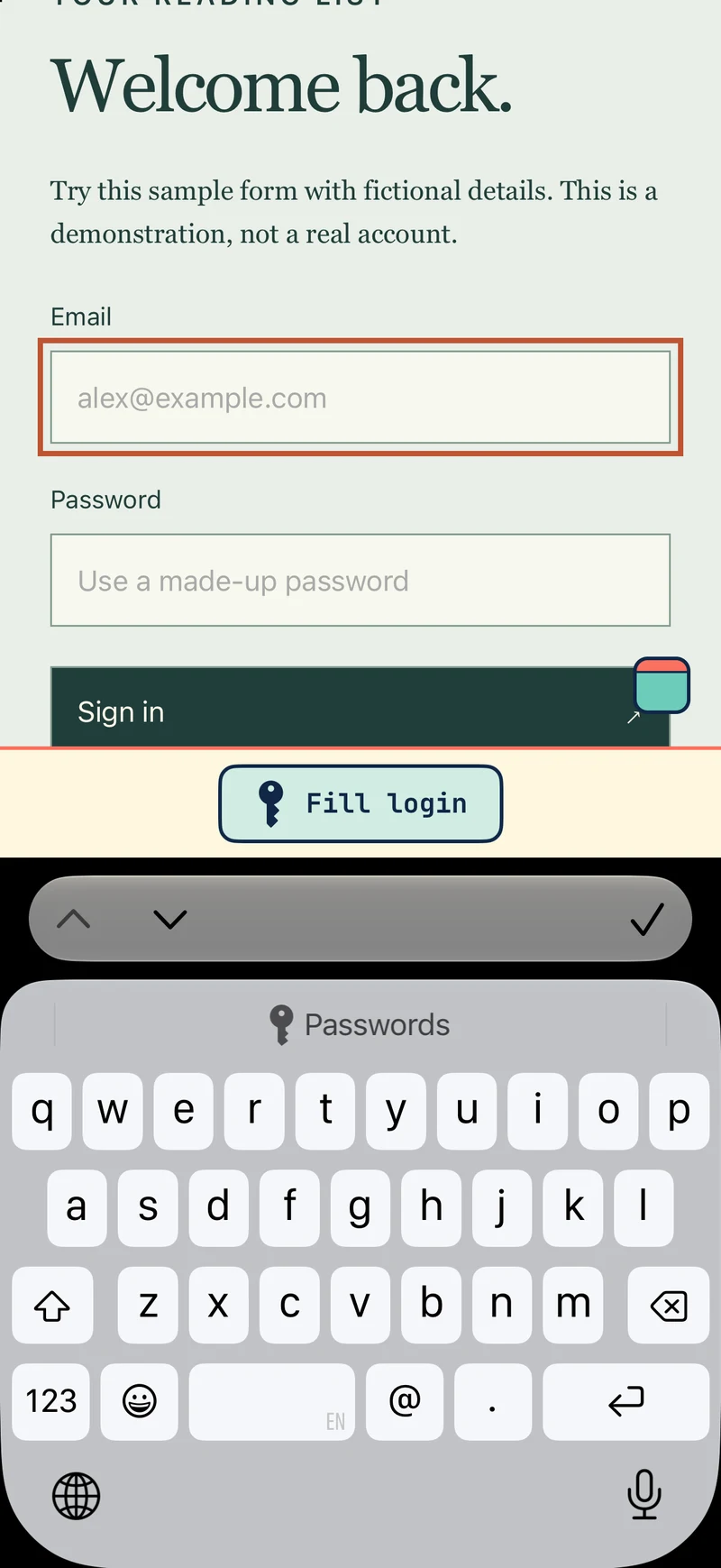
Choose to save supported HTTPS logins. Tap Fill login above the keyboard, then authenticate. Add, view, edit, or delete entries in Passwords. Entries can sync through iCloud Keychain.
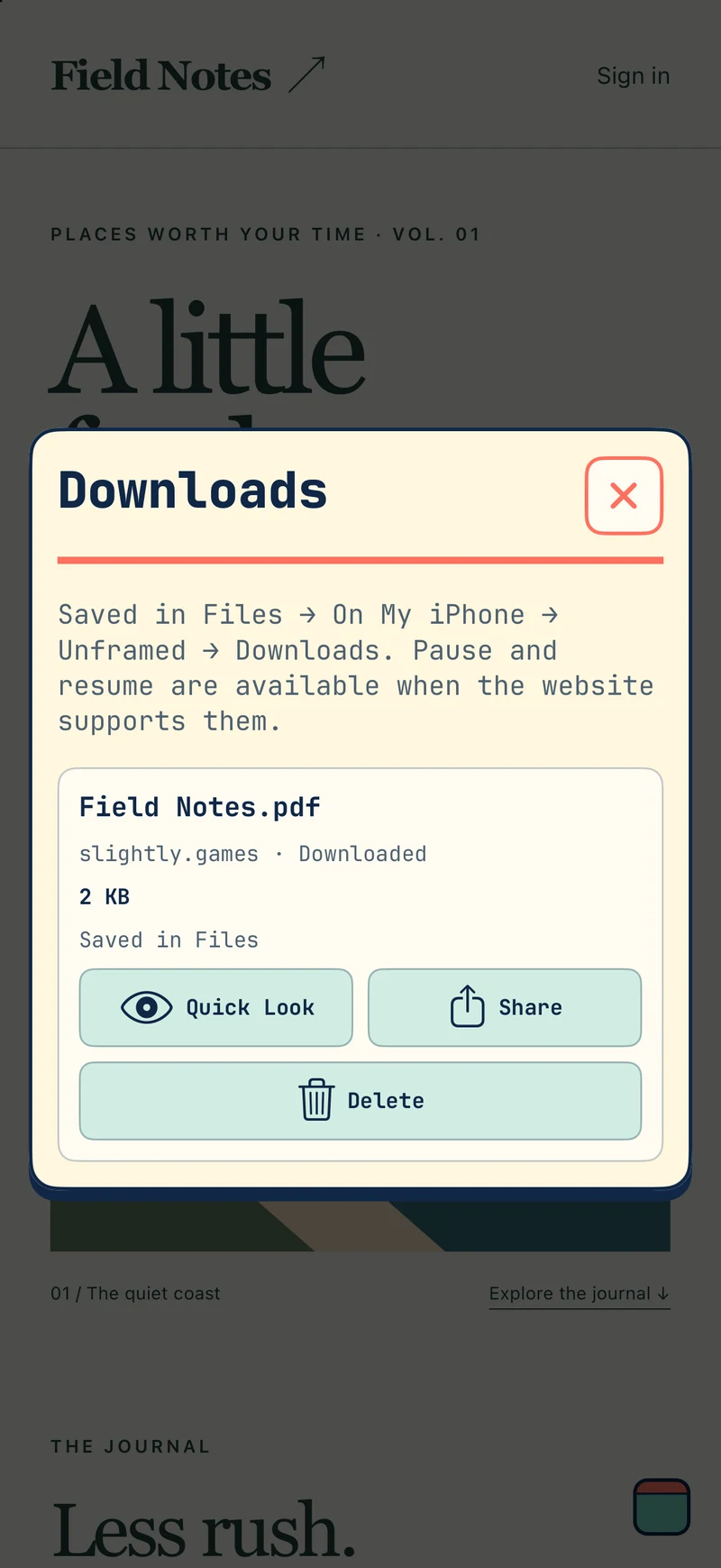
See progress, speed, downloaded size, and total size when available. Pause and resume supported transfers, cancel, or delete files. In-app notices tell you when a download starts, finishes, or fails.
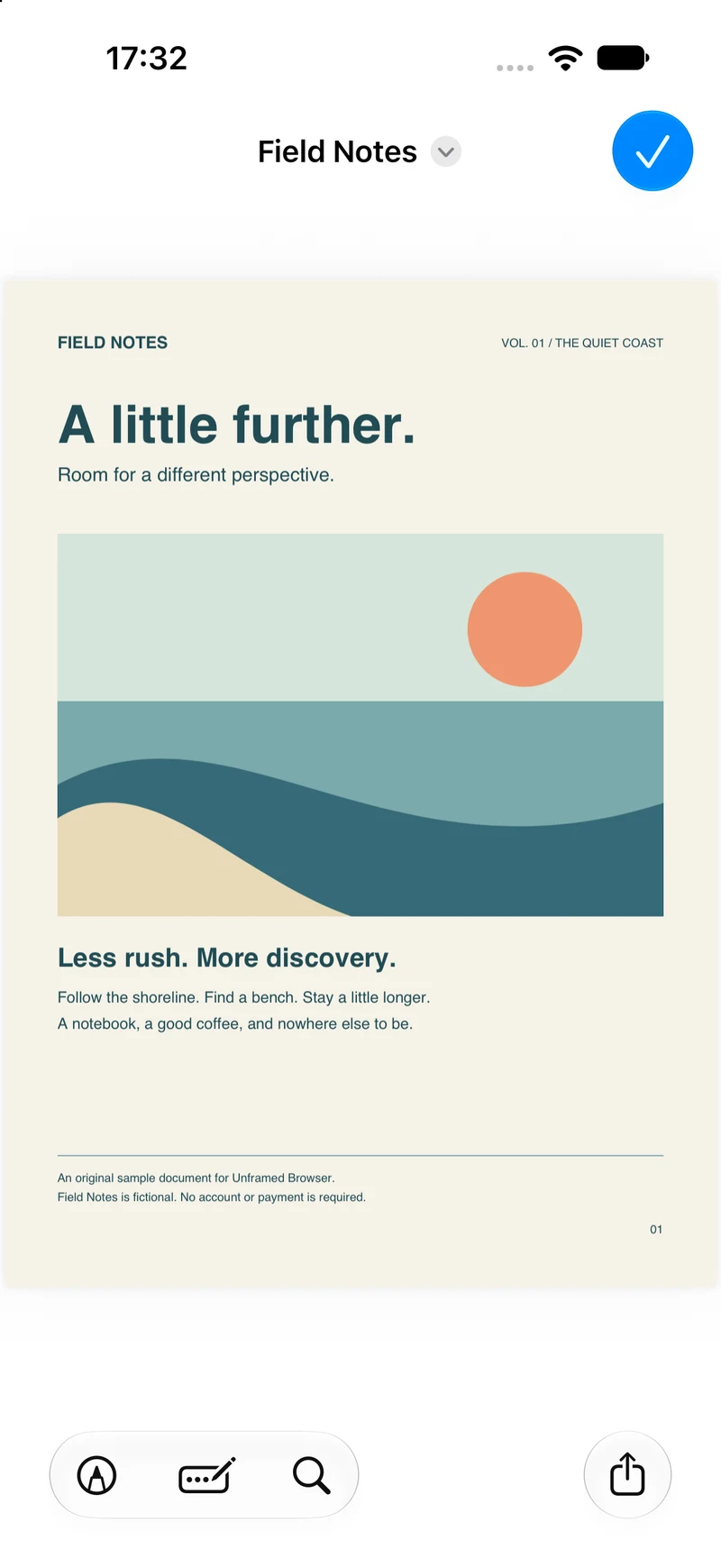
Preview supported downloads inside Unframed with Quick Look. Use the iOS share sheet to export a file or open it with another app. Your downloads are also accessible in Files.
Actual app screenshots with a fictional demonstration website and sample account. Website content belongs to the websites you visit.
A browser that stays simple
For web apps, reading, dashboards, and the sites you return to. A few thoughtful controls make the space your own.
Help & support
Found a problem or have a question? Tell us what happened, your iPhone model, and your iOS and Unframed versions. For a website issue, include its public address if you can.
hello@slightly.games Please leave out passwords, passcodes, and private information. Check screenshots before sending them.Tap the small coral-and-mint button in a corner of the screen. It starts in the bottom-left corner. Swipe it toward another corner, or choose a corner in the menu.
Open the website, then choose Bookmarks in the menu. Tap Add bookmark, check the address, and choose a name. Open Bookmarks again to return to it or remove it.
Sign in on a supported HTTPS form. Unframed can offer to save a new or changed login; an offer does not confirm that the website accepted it. Saving, filling, and password management require device authentication. Tap a login field to access Fill login above the keyboard. You can also manage entries in Menu → Passwords. These are Unframed's entries, separate from Apple's Passwords app.
Swipe horizontally to move back or forward through the current tab’s history. Pull down to reload normally. Refresh in the menu asks the website to revalidate cached resources for the current tab; it does not erase cookies, website storage, or other tabs. While loading, the same control lets you stop the request. Reloading can lose unsaved changes in that page.
Check the address and connection first. Unframed blocks invalid certificates and cannot bypass them. Password filling supports certain HTTPS login forms; some custom forms or embedded sign-in pages may need manual entry. Send us the public website address if a problem persists.
Open Menu → Downloads to manage them. Completed files are also in Files → On My iPhone → Unframed → Downloads. Quick Look previews supported formats inside the app; Share offers export and compatible apps. Pause and resume depend on website support. Keep Unframed open for active transfers; downloads are not guaranteed to continue after the app closes.
Tabs share website sessions and cookies, so you can stay signed in across pages on the same website. Each tab keeps its own live back/forward history and page state. On relaunch, regular website addresses and tab order are restored; pages reload and unsaved form content or temporary blob documents may be lost.
Bookmarks and preferences use iCloud, and saved logins use iCloud Keychain when available. Manage those services in your Apple device settings. Delete passwords and bookmarks from their Unframed menus. Removing the app does not necessarily remove Keychain or synced data. See our privacy policy for details.